
 AeroSim Docs
Running Your First Simulation
With the simulation configured, click New Run at the top of the simulation page. A summary of your settings will appear - review it and click Confirm to submit.
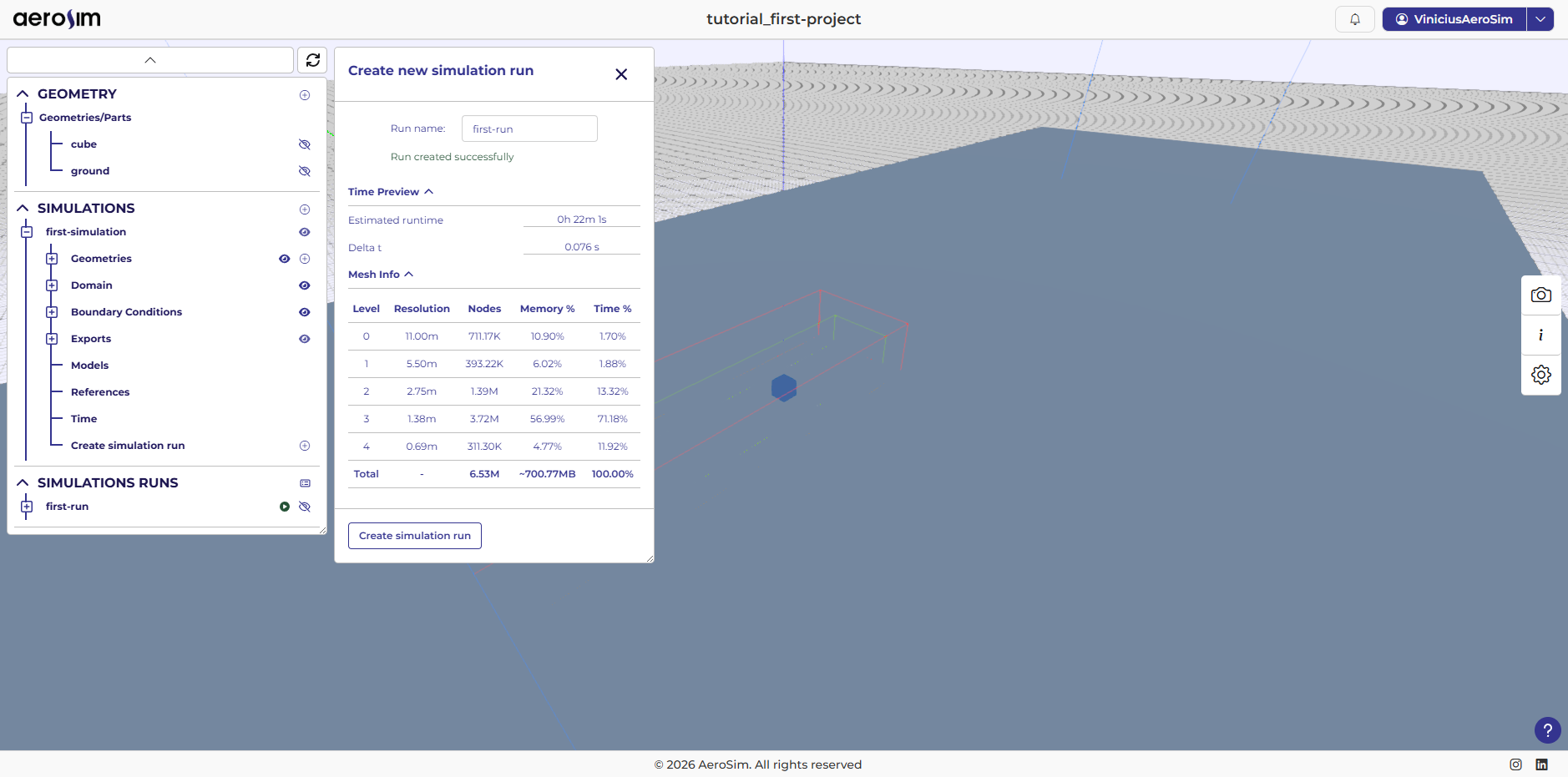
Creating a simulation run.
The run status will change to In Queue (hourglass icon) while waiting for a worker, then to Processing (gear icon) once the solver starts.
Click the run entry to open its status panel. It shows the current status, current solver step, elapsed time, and estimated time remaining.
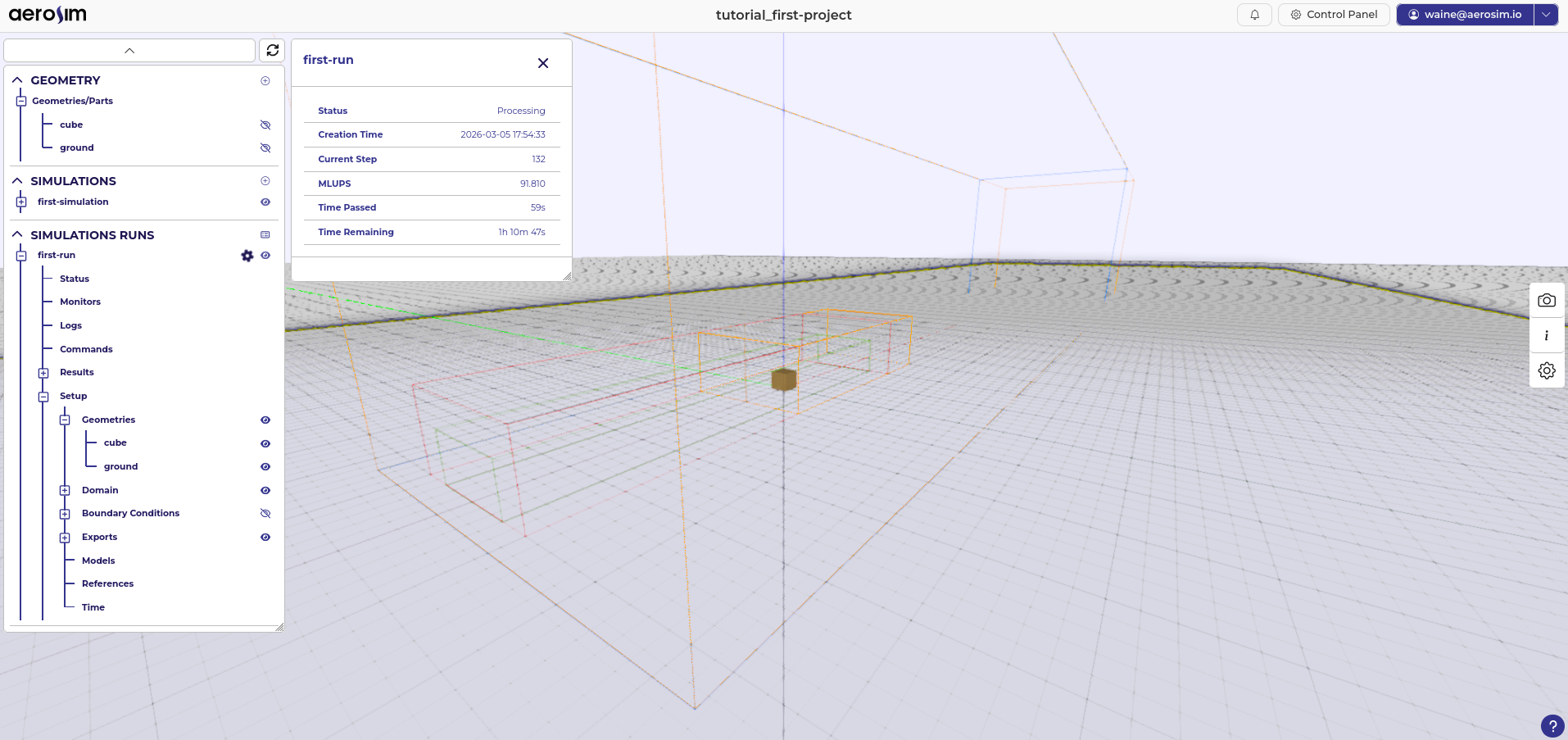
Run status panel.
Open the Logs tab to view timestamped solver output. This is useful for confirming the solver is advancing normally and for diagnosing errors.
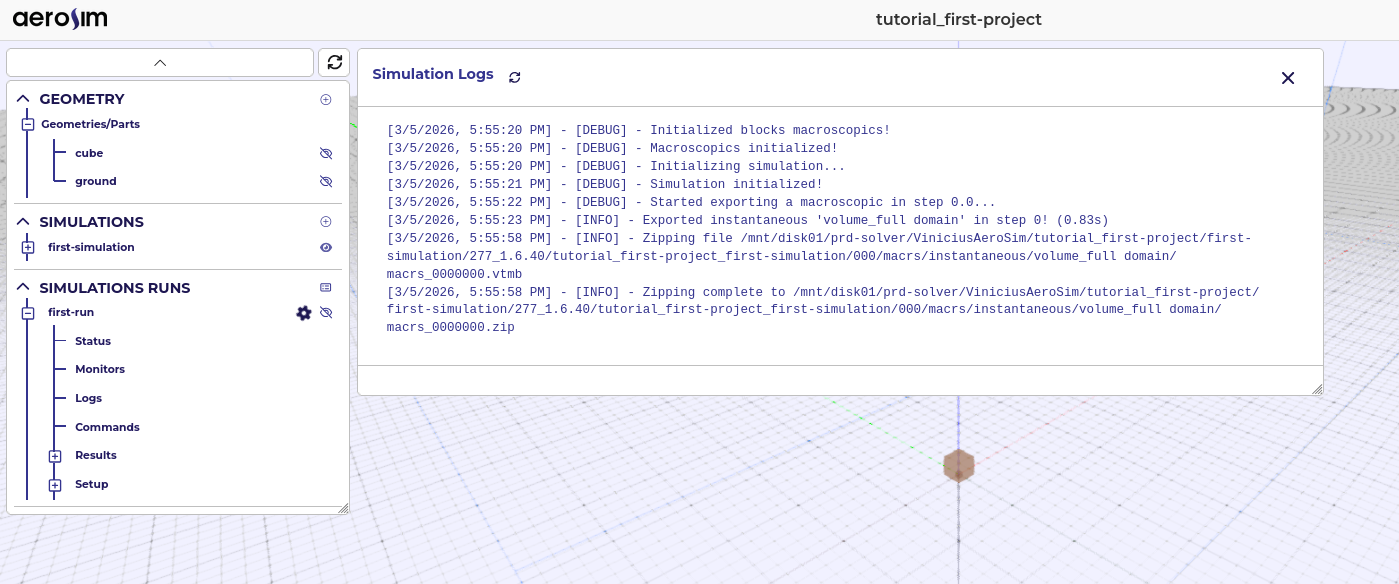
Simulation logs.
Open Monitors to watch real-time convergence charts for pressure and velocity components.
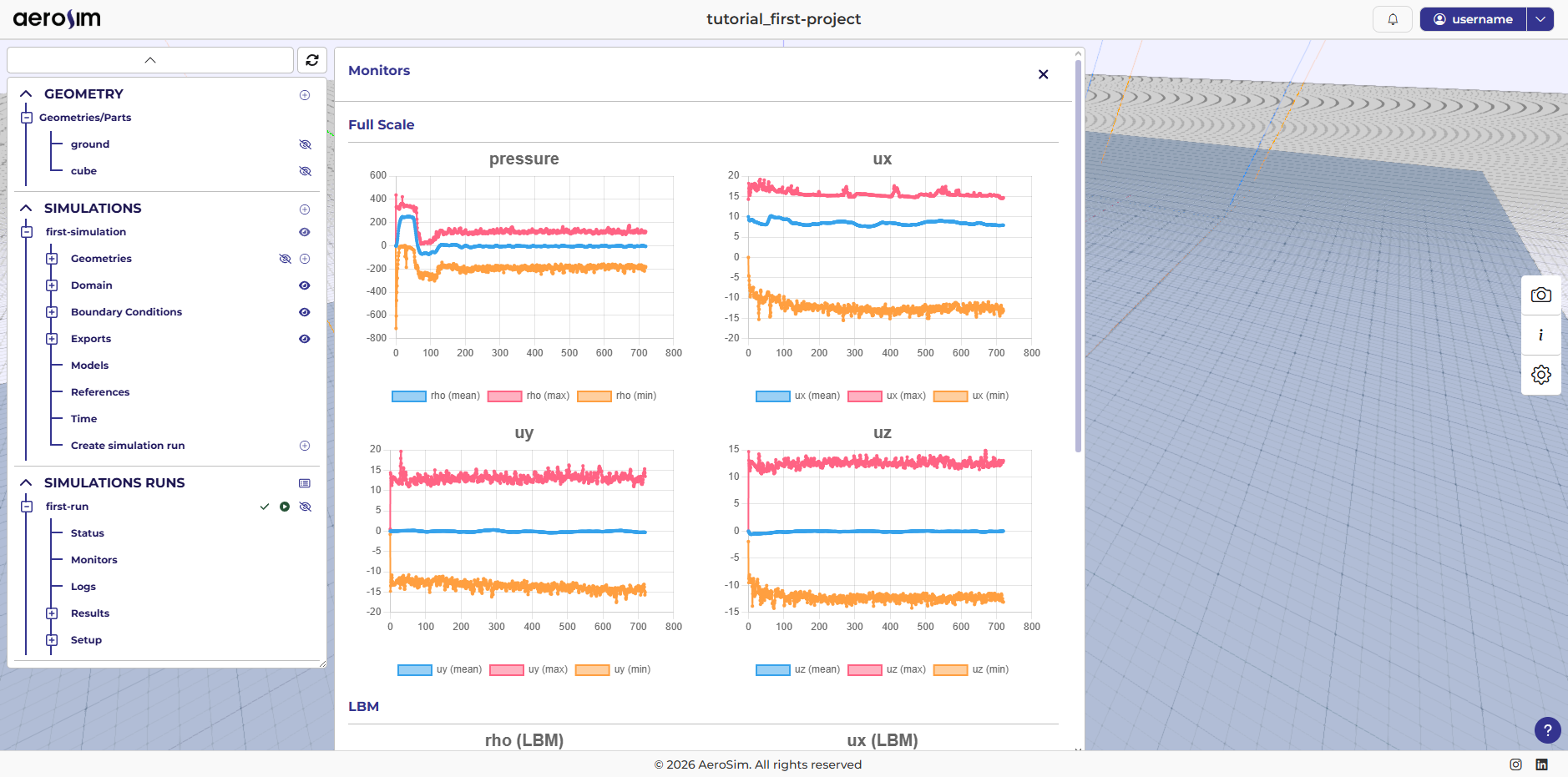
Monitors.
When the run completes, the status changes to Finished (check icon). If something went wrong, it shows Error (X icon) - check the Logs for details. If the issue is unclear, contact us on Telegram for support.
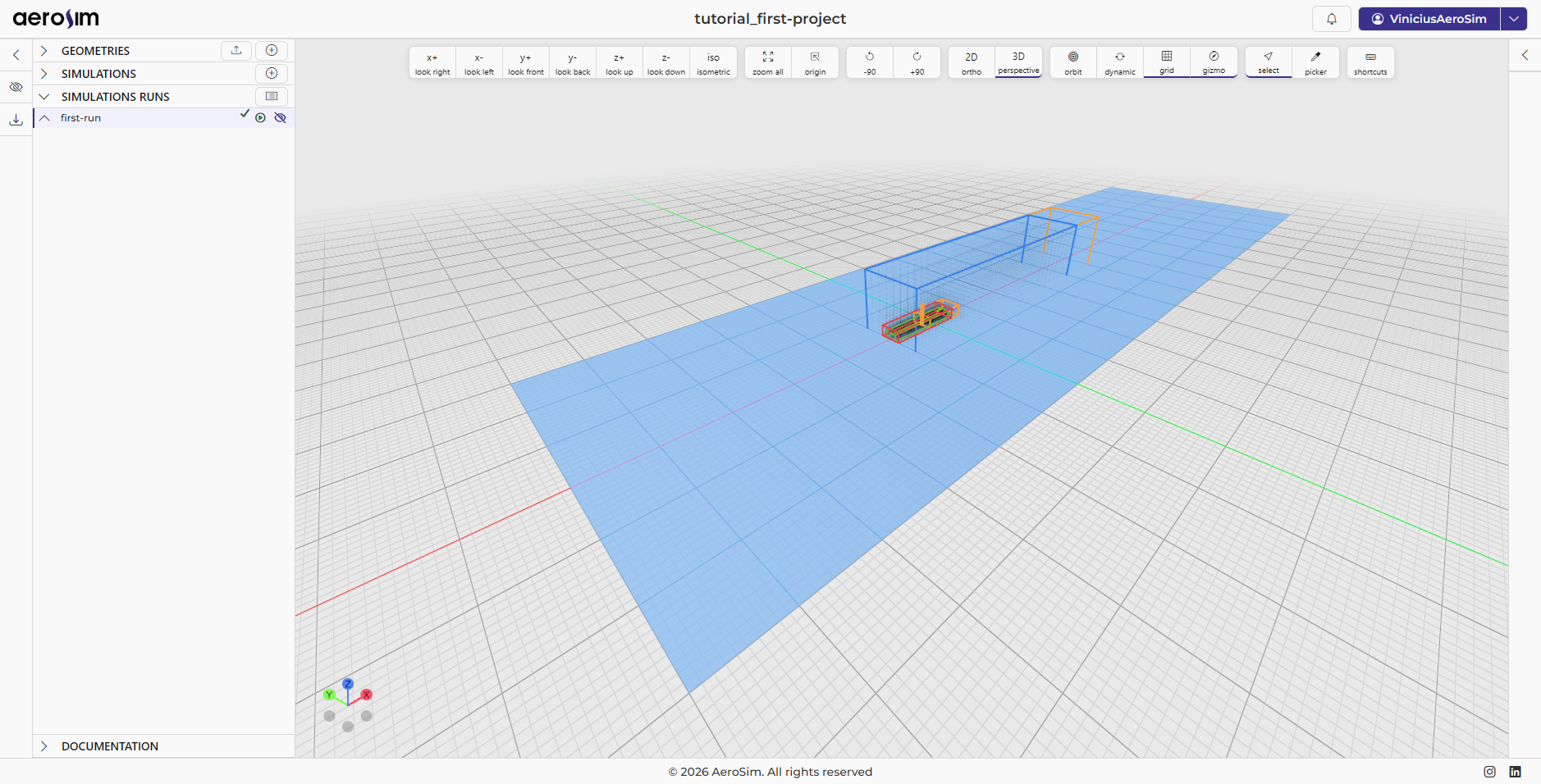
Finished run.
Next steps
You are ready to visualize the results.